ROOT Version: v6.38.02
Platform: Windows 11
Compiler: Not Provided
Every time I start root I get this exact same error message. It says that the system cannot find the file specified, then says it can’t find files ‘new’, ‘string’, and ‘iostream’.
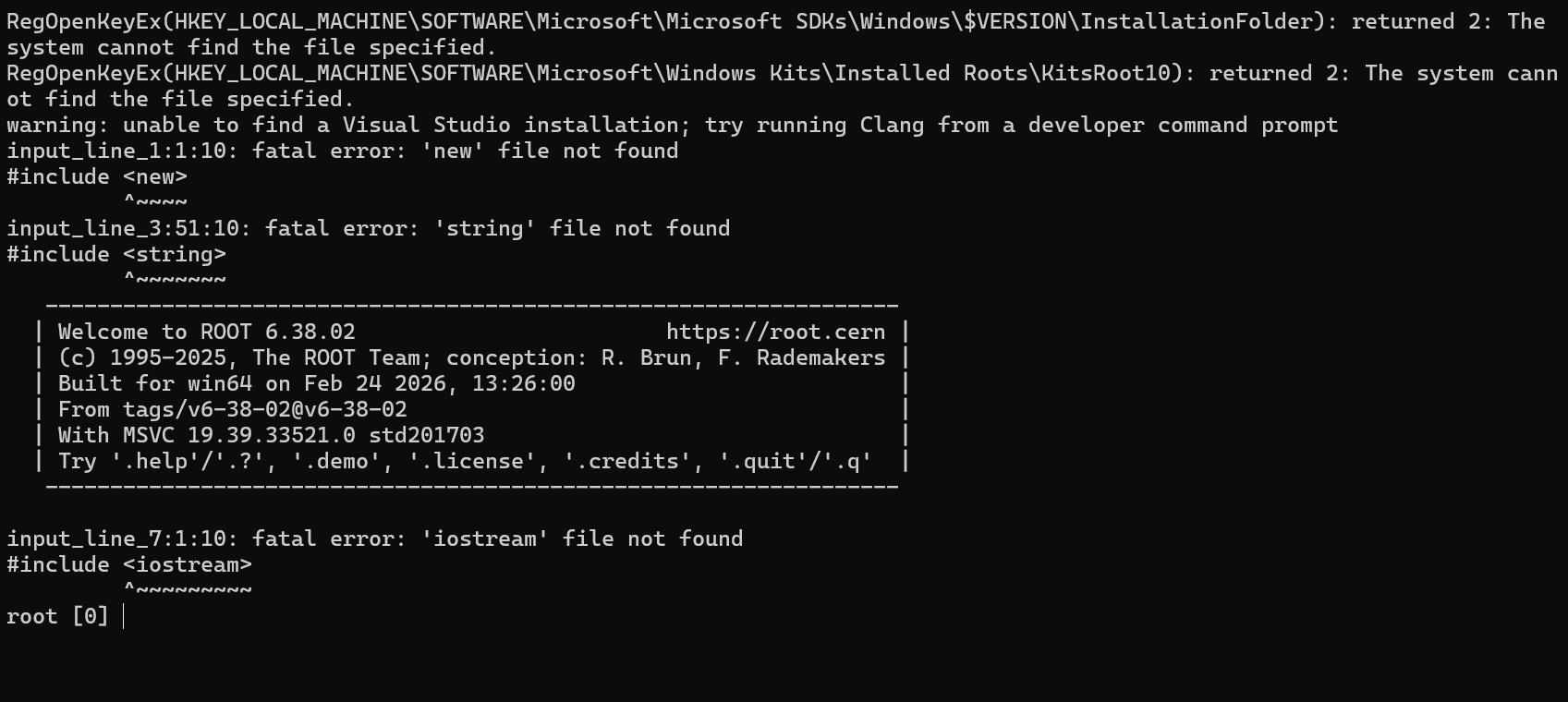
It happens when I run it in powershell, visual studio, and in the native tools command prompt for VS, always the same. It also hasn’t changed after I’ve redownloaded the program and made sure it added itself to the system path for all users, and after I’ve redownloaded the dependencies and a more specific release of python. I also tried modifying visual studio to include more features that seemed relevant, but that didn’t change anything. It was also the same when I made sure all the files were in the same folder as it is when I let everything download into default positions. When I run the files command I can clearly see files with the exact names it says it can’t find.
